
Clear your calendars, for Marvel’s Spider-Man 2 is out! While the much-awaited sequel promises to be one of the grandest gaming experiences in the superhero world, there’s a chance to make it even better. Players will not want to compromise any bar while performing their heroics across the City of New York. All you will require is some small changes in default settings to possibly experience the best version of Marvel’s Spider-Man 2.
Watch What’s Trending Now!
The sequel to 2018’s celebrated Marvel’s Spider-Man and the third game in the franchise, is probably Sony’s biggest pitch to the PlayStation fans in recent years. The game promises to tick every box off an ‘ideal game’ checklist. With everything that the game offers, it seems like every long-running fan demand has been catered to. But before you begin saving and enjoying the the next big Spider-Man adventure, here are some changes that should be made in the settings to top the experience.
Addressing the major setting changes in Marvel’s Spider-Man 2 to take your experience to a whole new level
The web-slinging action is out, and the title is already making its case for the Game of the Year. Meanwhile, there’s no doubt that Marvel’s Spider-Man 2 is an absolute masterpiece in terms of visuals and graphics. Insomniac’s visionary innovations and additions take the label’s existing visual standards to a whole new level. However, the default settings in the game compromise some fine features that might be the cherry on the cake.
Don’t worry, there’s no spoilers ahead, so make sure you don’t miss out on any changes before you begin the web-slinging action.
The Graphics and Visuals
Among all the changes players can make in the default settings, graphics and visual changes might be the biggest pitch.
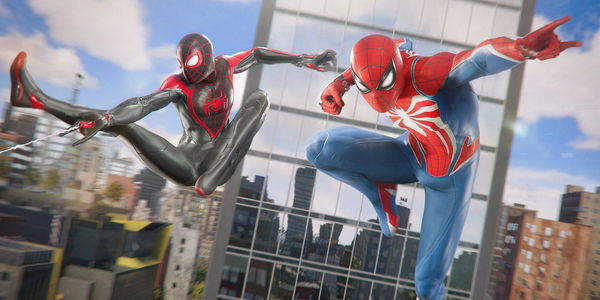
If you have a 120 HZ and VRR compatible display which you can find out through your system settings if unsure, set Graphics Mode to Fidelity with VRR set to smoothed. Also, make sure the 120HZ is set to auto. This will give you the best presentation of the game that’s possible.
If your system doesn’t support VRR and 120HZ, the 30 fps fidelity mode would work just fine for you. Although the performance mode has an edge over when compared to Fidelity. Thus, in your first run, if Fidelity doesn’t feel smooth enough, switch off to performance mode.
Read More: Insomniac Game Is Making Sure Your $70 or More Spent on Marvel’s Spider-Man 2 Is Justified
Motion Blurr
At higher frame rates, keeping the Motion Blurr feature turned on would certainly hamper the smoothness of the gameplay. The feature works great for Fidelity mode but it is highly advised to toggle with the Motion Blurr when switching modes.
Film Grain
Regardless of the graphics mode, the film grain bar should be reduced as a must. By default, the grain sits at a full 10, but anything below 5 would help the overall texture of the environment, making it more realistic and immersive. The developers presumably added the feature to hide the lower-resolution graphics in the game.
The Return of Chromatic Abbreviations
Chromatic Abbreviations is a feature webheads and true believers might recall from the 2018 source. During an action sequence, when the superhero landed a punch, the animation giving a rainbow effect to the sequence wasn’t appreciated by a lot of fans. The gamers believed it took realism off from the action. Well, the feature returns to Marvel’s Spider-Man 2 and is on by default, so make sure you make your call.
Marvel’s Spider-Man 2: Bonus Visual enhancements based on preference
- Film Animation & Comic SFX
Once you unlock any Spider-Verse suits, it unlocks film-style animation and comic effect options. Players can turn it on and off for any desired suits following the debut.

- Camera Motion
This camera motion can be changed on the basis of your preference. It simply adds more shake to the movements of the camera while you swing through the skyscrapers. A visual feature you might recall is similar to the opening sequence of The Amazing Spider-Man.
From shortcuts to zoom features, other important setting pointers to keep in mind
Thorough sorting out your visuals? There are some more exciting changes that you can make to have an ultimate New York action experience.
Shortcuts
Make sure you have assigned shortcuts to the latest installment. Strong shoutout to the popular slow-motion feature and photo mode. In the previous game, photo mode was set to the left button by default.
Fall Damage
Another major setting you might want to enable is the Fall damage setting under gameplay settings. It may certainly make for a most realistic experience when falling from heights. Also, the added strain may help you take strong command of your swinging.
And of course, if you’re confident in your swinging skills now, it is advised to keep the swinging assistance under the gameplay settings to the bare minimum.
Now, that you have all the settings figured out, it’s time for some action!
Watch This Story: PS5 Exclusive Spider-Man 2 Will Have Crossover Moments of Miles and Peter Taking On Bad Guys!
Written by

Edited by

Rohan Karnad